 Gallery Gardener
One big clean, then only the new photos
What the app is, who it is for, and how a clean-out actually goes.

Gallery Gardener is an iPhone app for easily cleaning up your camera roll. You look at one photo at a time and make one choice. It remembers every choice, so it never shows you that photo again, which is what makes a library of thirty thousand photos something you can actually get to the end of.
Reclaim all of that space on your phone and only keep all of your favourite memories.
Who it is for
You have what feels like an unmanageable number of photos and videos, and the storage warning arrives most weeks. You have been meaning to sort it out for years. Every time you open Photos to try, you scroll for a minute, realise how far back it goes, and close it again.
The clean-out is the first half of the point. Screenshots you took once, forty near-identical shots of the same moment, videos you have never watched: that is where the space actually is, and getting it back means you can keep taking photos without the phone nagging you.
The second half is what the clean-out leaves behind. Every month you finish, you have been through the year again on purpose, and the photos still there are there because you chose them. You can even do a small share of some of the photos you decided to keep that month.
How it goes
Seven steps, start to finish. The first one happens once; the rest is the loop.
-
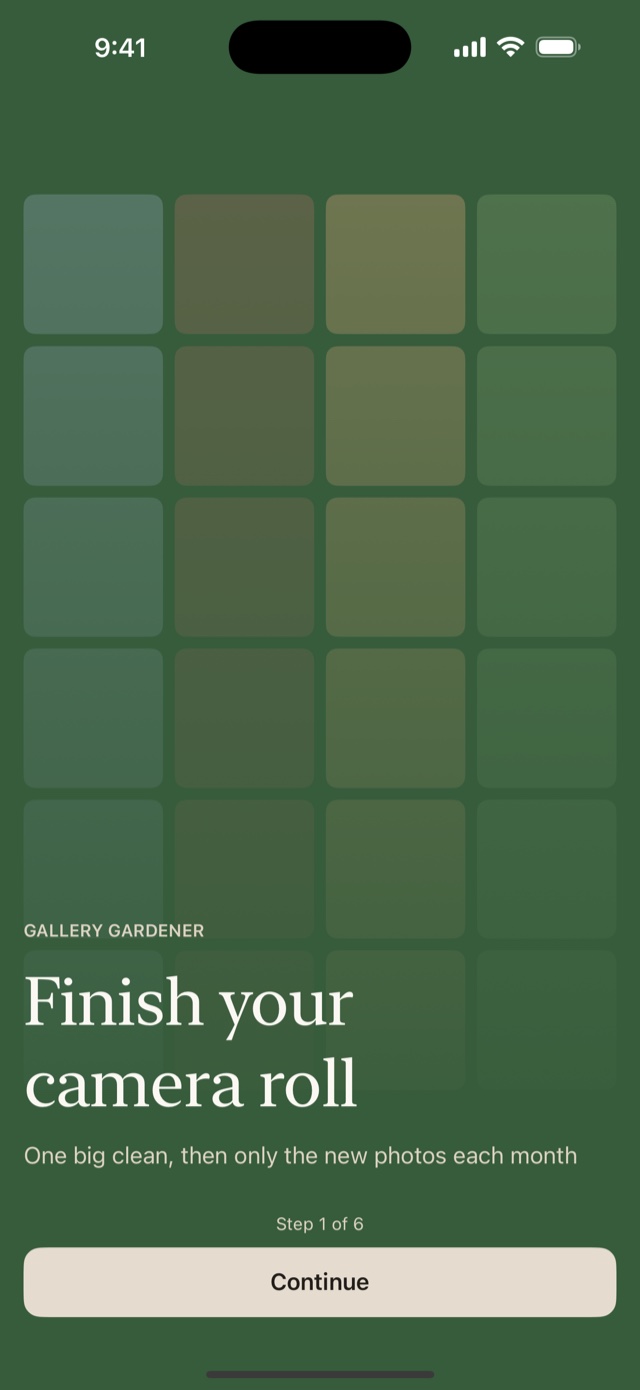
Set it up once
Six short screens. You choose how much detail you want on screen, whether photos that live only in iCloud should download as you review them, and then you give Photos access.
Say yes to full access rather than picking a few photos. With a handful the app can only ever show you that handful, the totals are wrong, and the whole idea of finishing stops working. Nothing is uploaded either way. See the privacy policy.
-
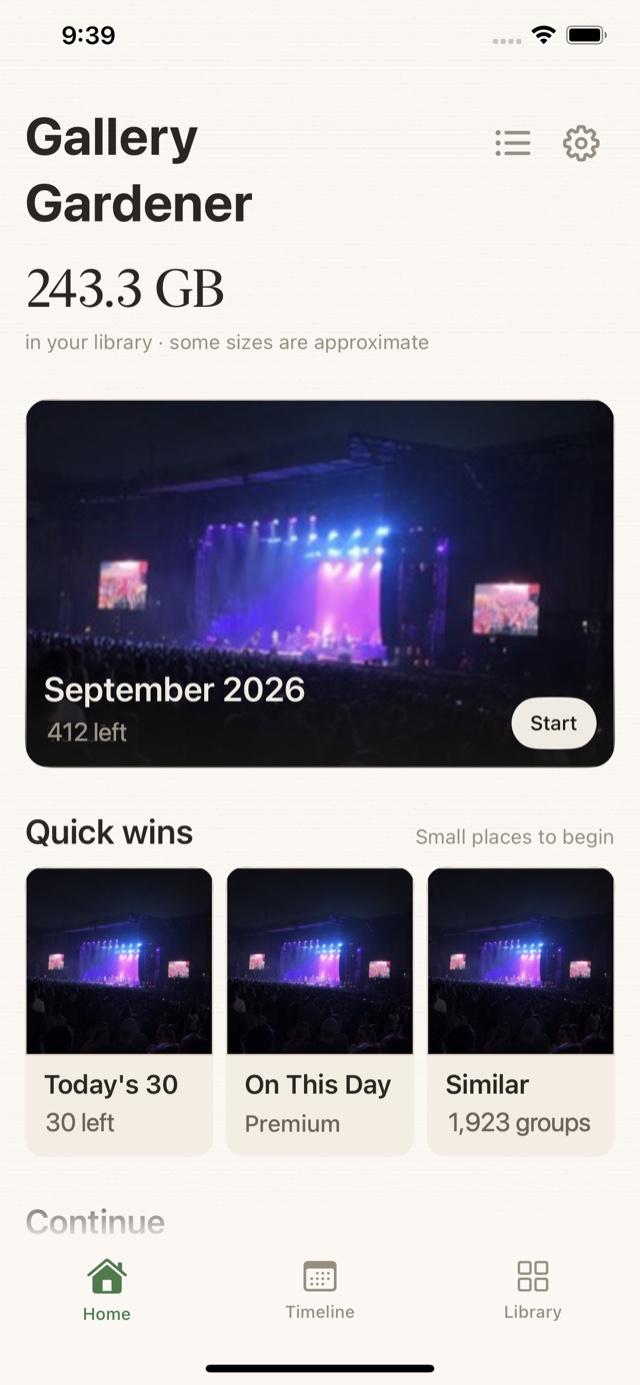
Start somewhere small
Home opens with the size of your library and one month ready to go. Under it, Quick wins: Today’s 30, and any near-identical shots it found grouped together so you can pick the good one.
You do not have to start at the beginning. Thirty photos while the kettle boils is a real dent, because the app keeps the thirty for the rest of the day and remembers what you did with them.
-
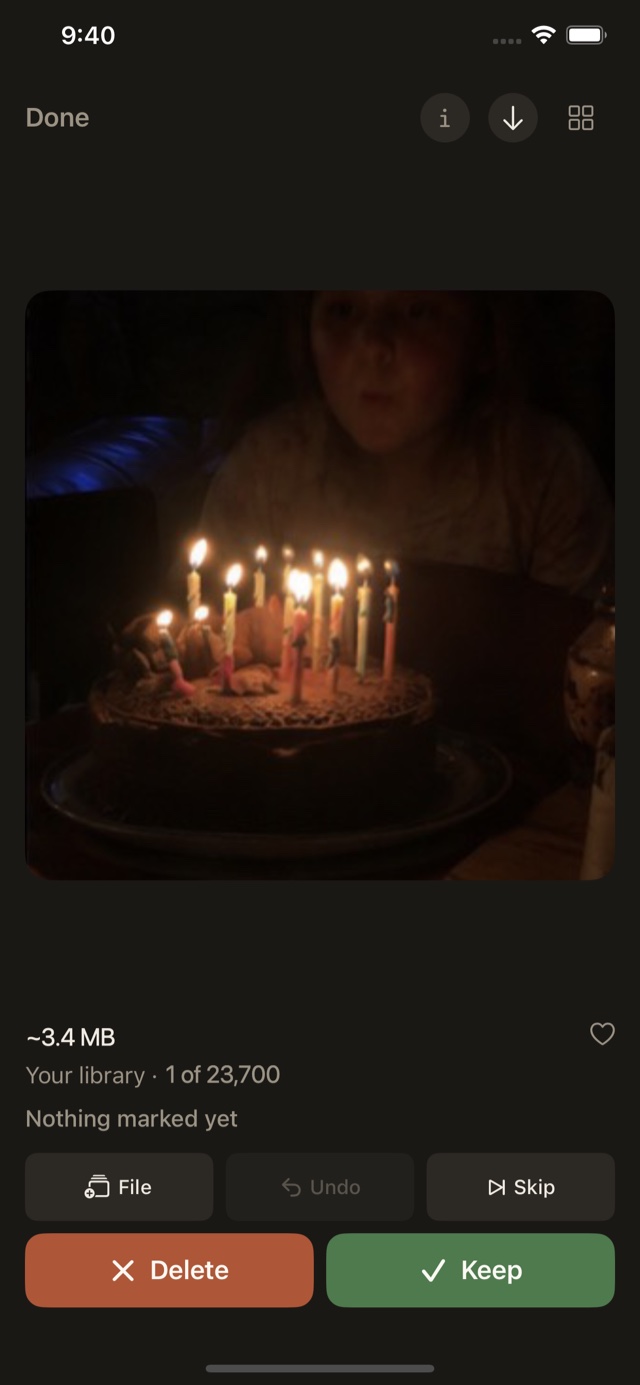
One photo, one choice
The photo, and its size underneath it. The size is there because it is the difference between guessing and knowing where your space went. Then three ways out:
- Delete adds it to a shortlist. Nothing leaves your phone yet.
- Keep keeps it, and it never comes round again.
- File keeps it and puts it in an album.
Swiping left and right does Delete and Keep if you prefer. Undo steps back as far as you like. Skip decides nothing and brings it round again later. Pinch to zoom in when you cannot tell whether anyone blinked.
-
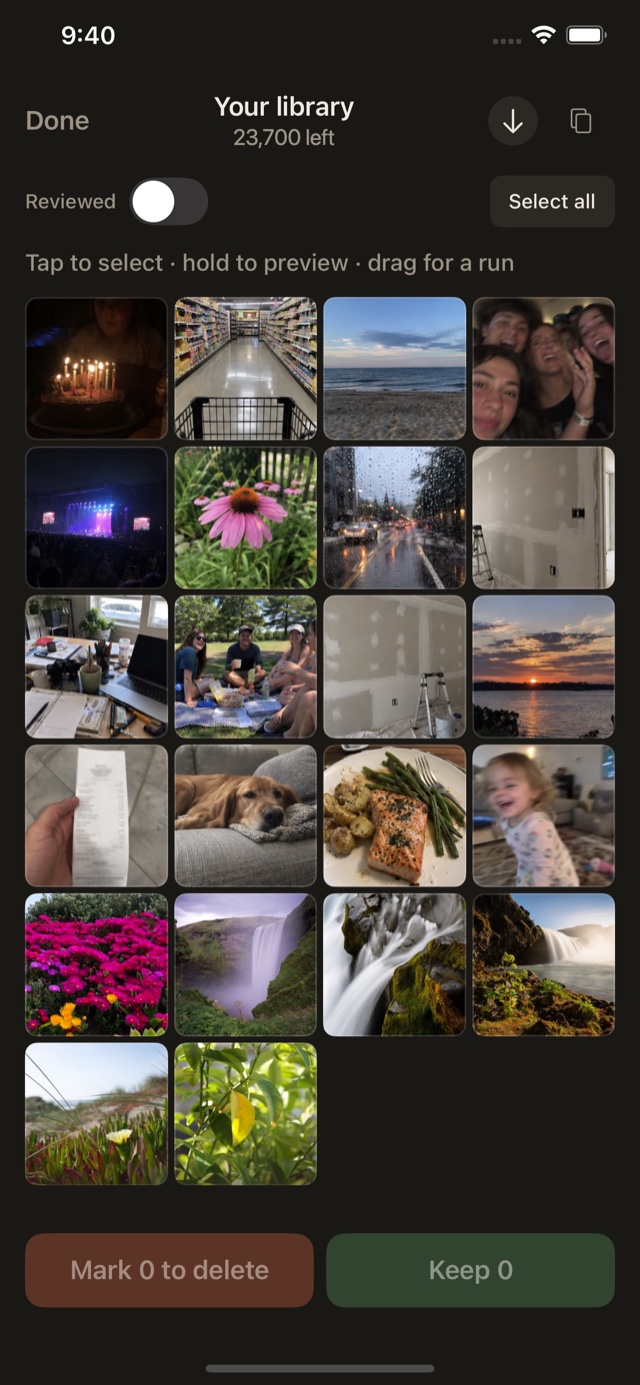
Use the grid for the bulk
Eight hundred screenshots one at a time is a punishment, so any set can be switched to a grid, and screenshots open in one already. Tap to select, drag across a row to take a run of them, hold a thumbnail to see it properly before you decide. Select all is there for when the answer is obviously all of them.
-
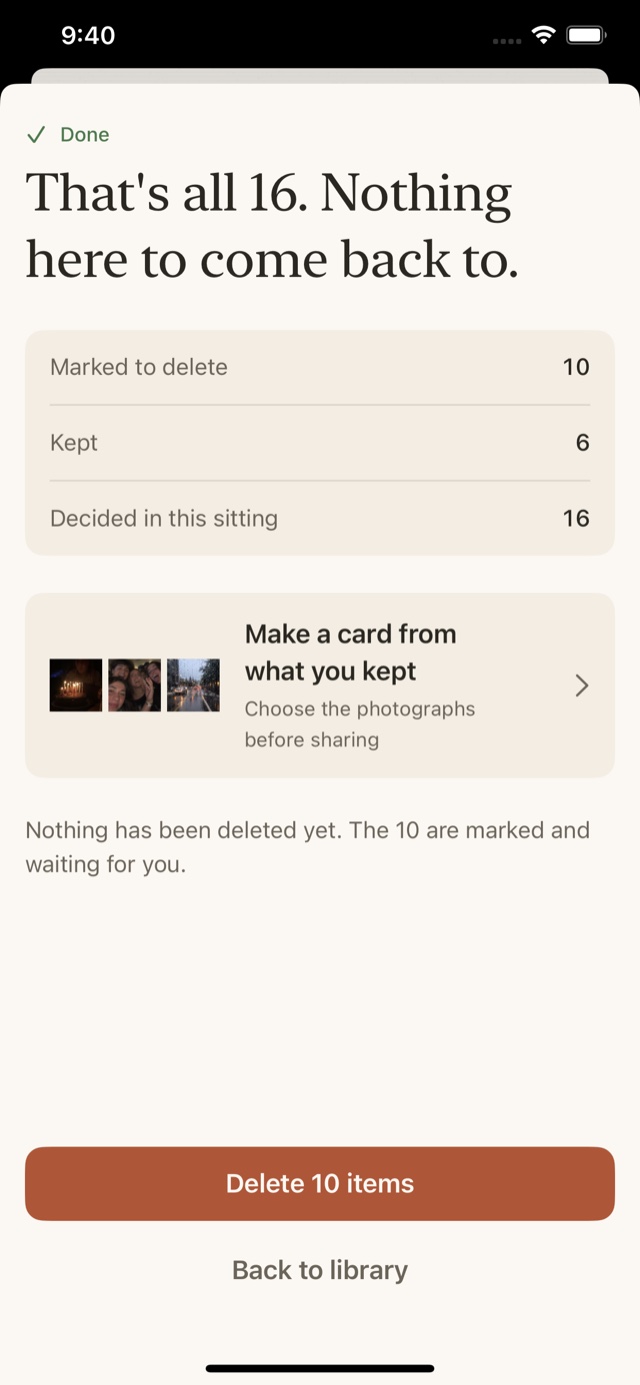
Nothing goes until you say so
Marking is not deleting. At the end of a set, or at any point before it if you have already found a few gigabytes, you see everything you marked, and you can pull anything back out before you commit.
When you tap delete, iOS puts up its own confirmation on top of ours. The app cannot skip that one, and would not want to.
-
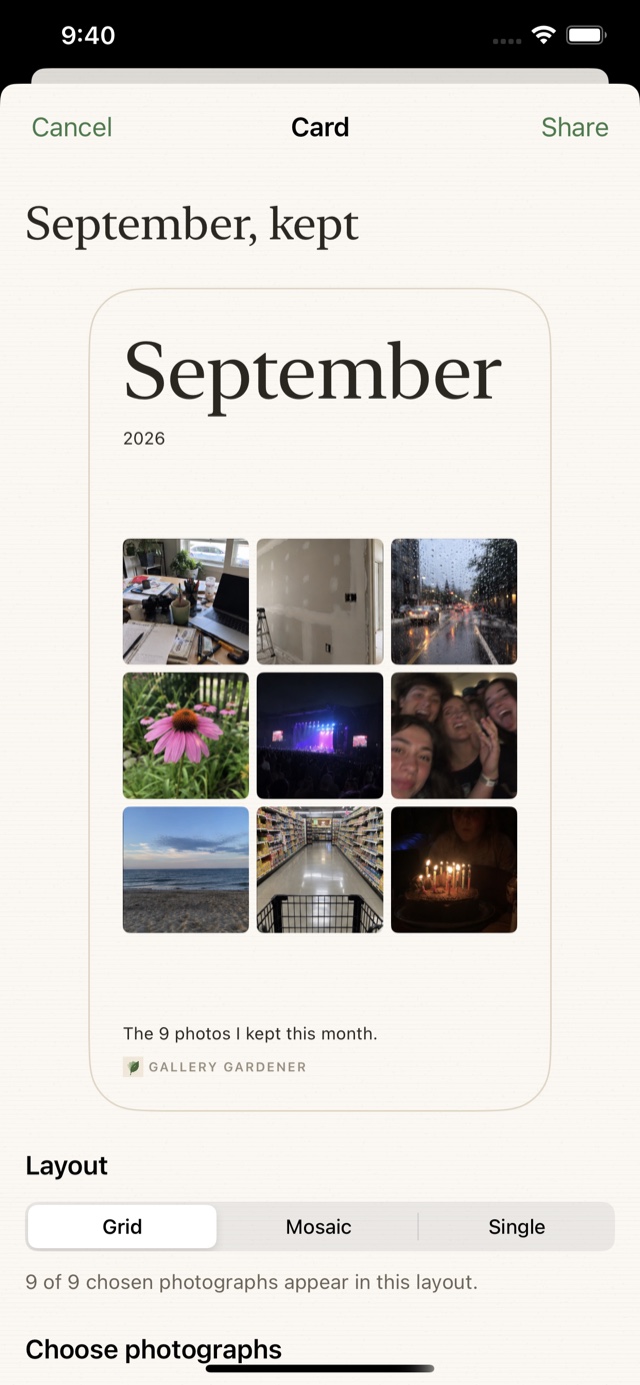
Keep something from the month
At the end of a month you can make a card out of what you kept. You choose the photographs and the layout, and it comes out as one image you can send to whoever was in it.
It goes nowhere unless you send it. There is no feed and no account; it hands the image to the normal iOS share sheet and stops there.
-
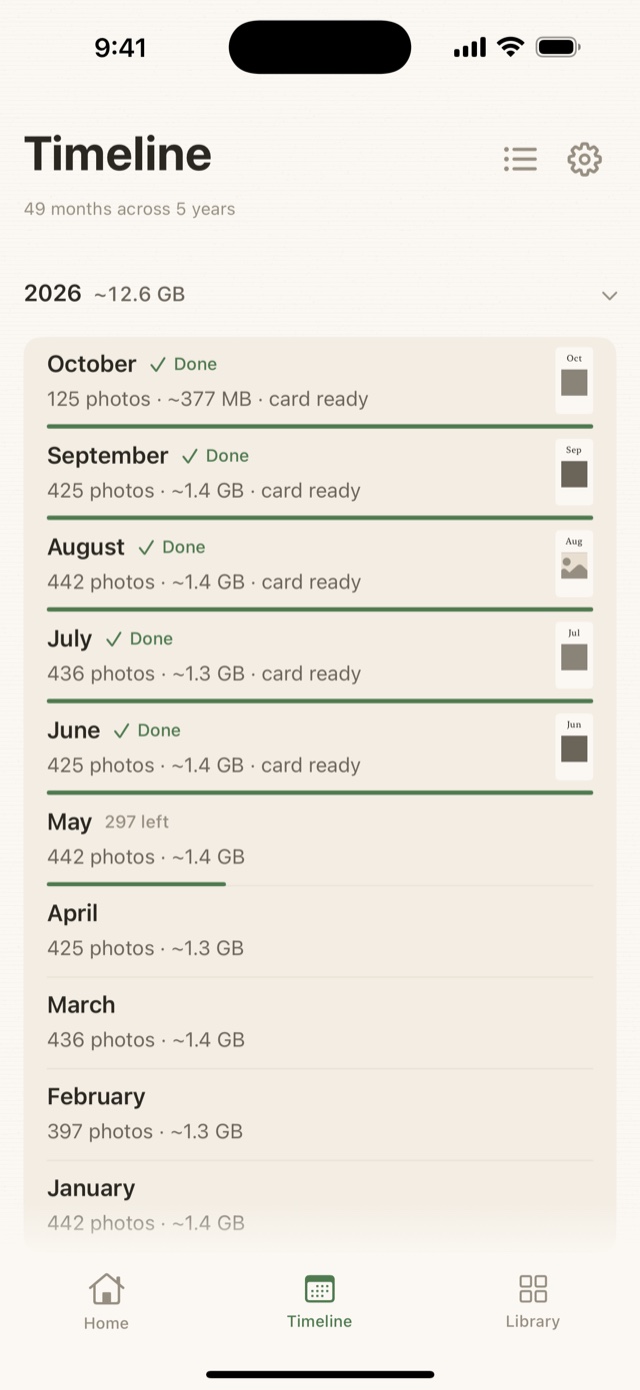
Come back whenever
This is the part other cleaners get wrong. Close the app halfway through May 2023 and come back in a month, and it picks up exactly where you stopped. Home offers the month you were in the middle of; the Timeline is the whole library by year, each finished month marked Done and the rest showing only what is still to go.
Nothing you have decided on comes back. Once the big clean is done there are only the new photos each month, which is a few minutes rather than an afternoon.
What it costs
Photos are free, forever. Every month, every category, the grid, Today’s 30, the card, reminders, Face ID lock, and the full record of what you deleted and how long you have to get it back. No trial, no nagging, no account.
One payment unlocks videos and On This Day. Videos are usually 50–70% of the space a library takes, so that is where the biggest wins are. The free app shows you the real video total so you can see for yourself before deciding. On This Day is this date in every year you have photos for. There is no subscription, and there never will be.
Two things worth knowing up front
Deleted photos go to Recently Deleted, and sit there for 30 days. That means nothing is really gone the moment you delete it, which is good if you change your mind, but it also means your storage does not drop until that album is emptied. The app explains this after your first delete and shows you how to empty it. Once you have read it you can switch the explanation off, and Settings → Guides brings it back. This catches people out with every app in this category.
Your library never leaves your phone. No account, no sign-up, no upload, no analytics, no server of ours anywhere. If you turn on downloading for iCloud photos, Apple Photos fetches the one photograph you are looking at, from Apple, not from us. The privacy policy is short and says the same thing at more length.
Questions before you start?
Support and common questions answers the ones that come up most, including how to get a photo back, and how to start over.